
Made by Shauna Hannon with Scribe
1. From the left-hand navigation menu in your Canvas course, click "Attendance."

2. In the "Roll Call" menu, click "Mark all present" if all students are accounted for.

3. Click "Unmark all" to de-select students.

Tip: Tip! You will be able to view attendance by either "List" or "Class" view.
4.
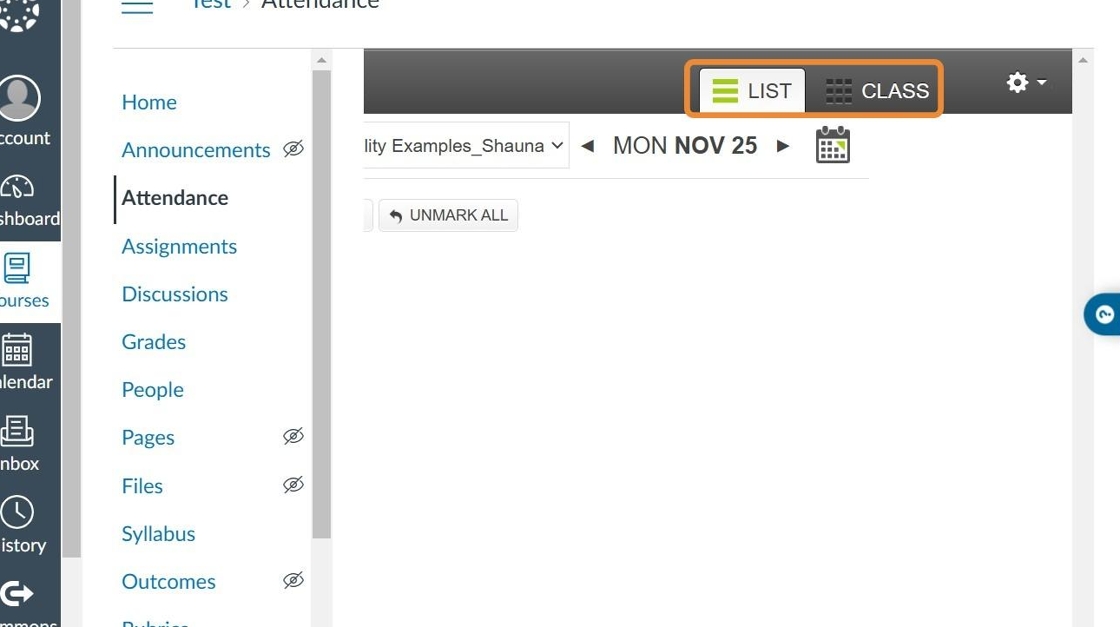
Tip: Tip! You can either "Take Attendance" or "Edit Seating Chart" in the "Class" view.
5.

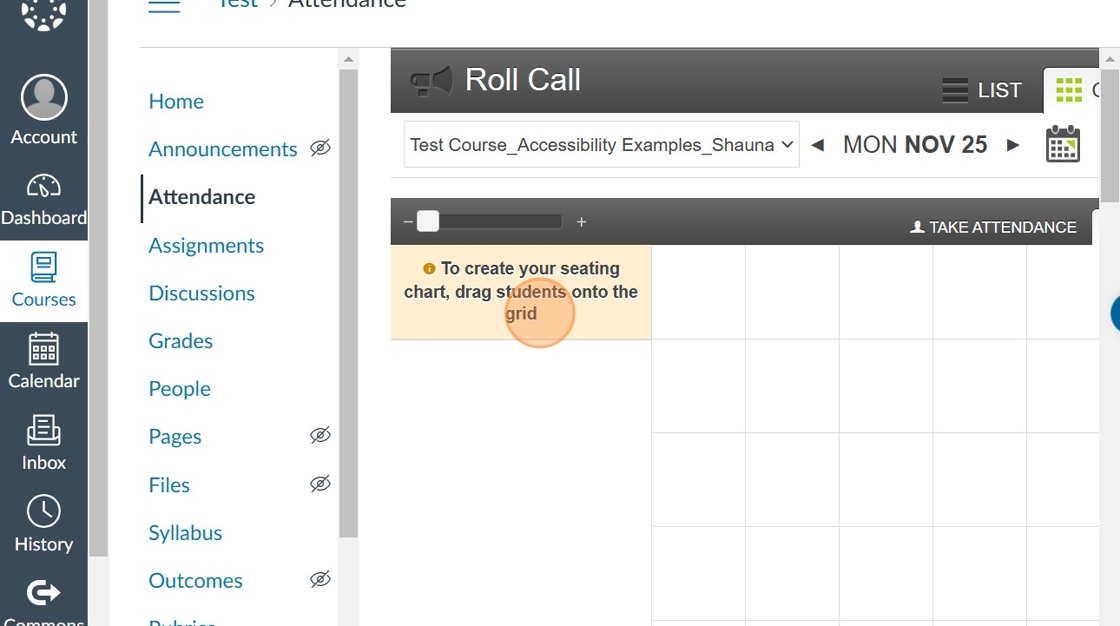
6. Select student names onto the "Edit Seating Chart" grid to create a seating chart.
7. In the upper-right, click "Settings."
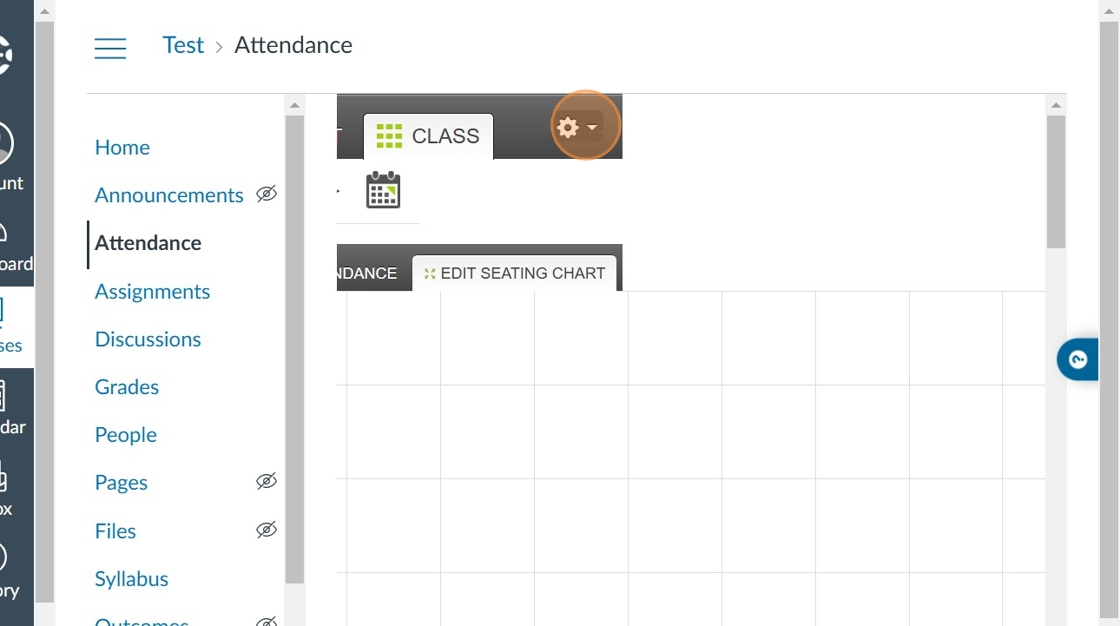
8. Click "Roll Call Settings."

Tip: Tip! You can either select not counting attendance towards a final grade, or adjusting presence percentage based on lateness in the "Roll Call settings" window.
9.

10. From "Settings," click "Attendance Report."

11. In the "Export Attendance Data" page, select the "Start date."

12. Select the "End date."

13. Type the email address of where you would like the attendance report sent to.
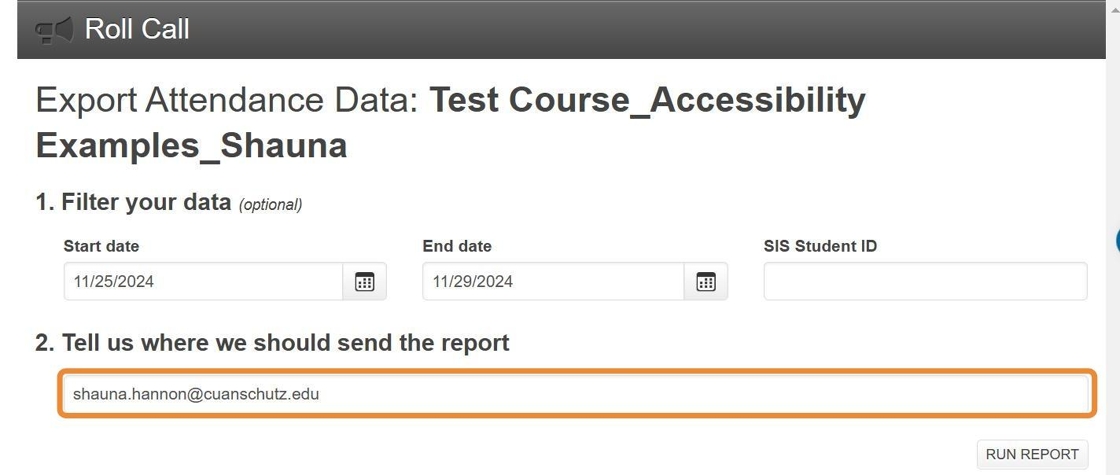
14. Click "Run Report."

Tip: Tip! Click the below links for additional Canvas resources about using attendance tools in Canvas that may be helpful to you!:
What is the Roll Call Attendance Tool?
Comments
0 comments
Article is closed for comments.